
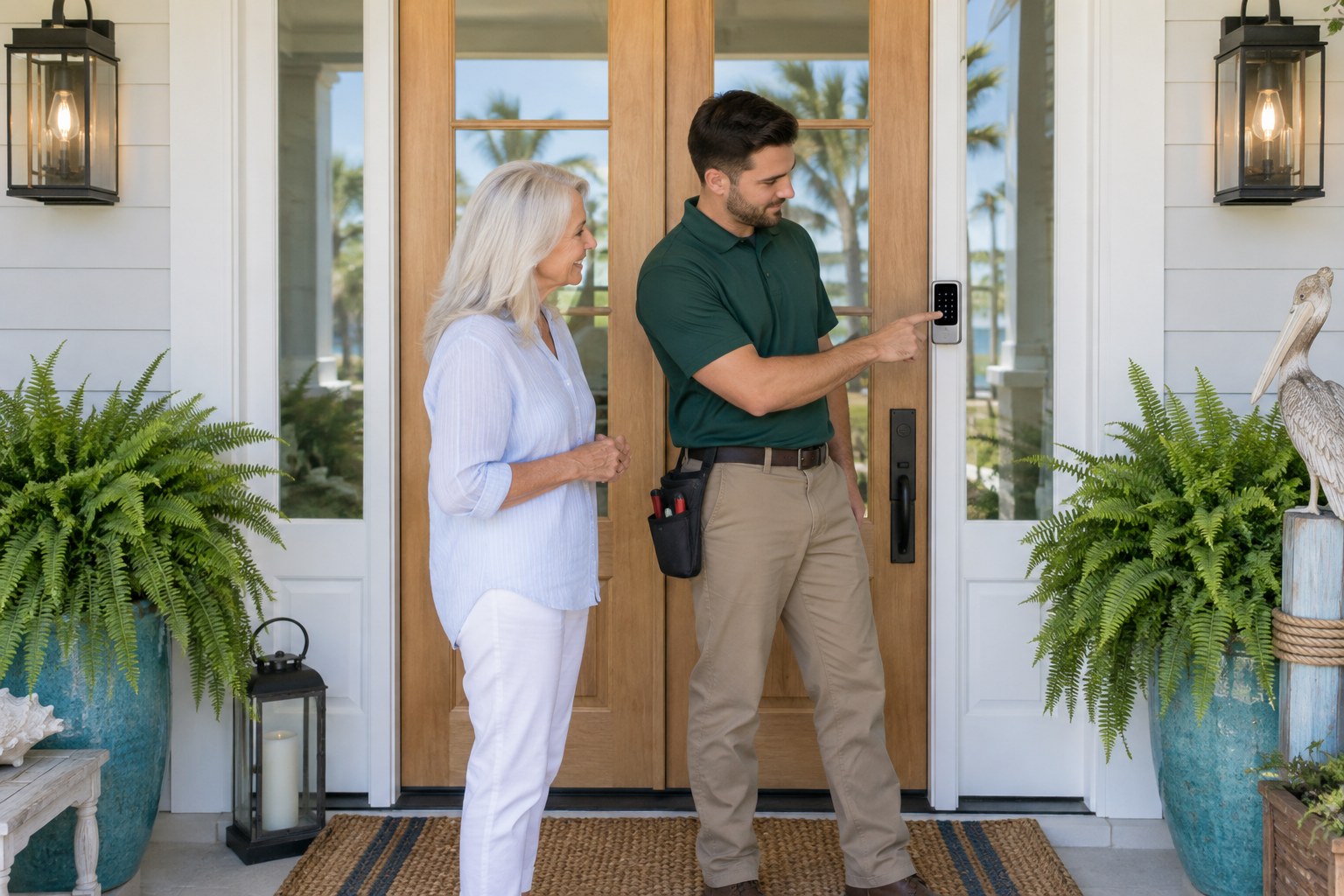
Three layers that must all work
A connected lock depends on three layers. The first is the mechanical lock: the bolt, the door, the strike plate and the key. The second is the lock's own electronics: the board, the motor and the batteries. The third is the connection to your phone or home network, through Bluetooth, Wi-Fi, a hub or a bridge.
When people say the lock will not connect, they usually mean the third layer is failing. But a problem in the first two can look the same from the app. A weak battery can drop the radio. A door that binds can make the motor fail and the app show an error. So diagnosis starts by finding which layer is at fault.
A simple test helps. Try the keypad or key on the lock. If the bolt moves smoothly and the keypad responds, the mechanical and electronic layers are probably fine. If the lock struggles even with the keypad, the issue is not the network.
Knowing this saves hours of resetting apps when the real cause is a tired battery or a sticky bolt.
Start with power
The radio inside a smart lock is the hungriest part. When batteries fade, the radio often stops working before the keypad does. The lock appears to be locked out of your network, but the real cause is low power. Always check batteries first.
Replace all cells with fresh alkaline batteries, and check the contacts for corrosion. A weak connection can behave like a weak battery. After the change, wait a minute or two for the lock to restart and look for a light or chime.
If you use rechargeable cells, switch to alkaline for testing. Rechargeable batteries often deliver lower voltage and can cause intermittent drops.
Record the date of the change and the app's reported battery level. If a fresh set is reported low within weeks, something is draining power, such as a binding bolt or a hardware fault.
- Replace all batteries together with fresh alkaline cells
- Wipe contacts and check spring tension
- Wait for the lock to restart fully
- Compare the app's battery reading before and after
Bluetooth problems
Bluetooth locks talk to your phone directly, and range matters. Walls, metal doors and even the sun on a hot day can reduce reach. If the lock connects when you stand next to it but not from the driveway, the signal is simply weak at the distance you are trying.
Check the phone. Bluetooth must be on, the app must have permission to use it and to know your location on some systems, and battery saver modes can switch off background connections. Restart the phone and the app. Update the app to the latest version.
Remove the lock from the app and pair it again if needed, following the manual. Some locks only pair within a short window after power up, so remove and reinsert one battery just before pairing.
If other phones in the house connect while yours does not, the fault lies with your phone's settings or the app profile, not the lock.
Wi-Fi and hub problems
Locks that connect through Wi-Fi or a hub add the router to the chain. If your router changed, the name or password was updated, or the internet provider replaced a box, the lock loses its link and cannot find the network again. Check that other devices work on the same network.
Most locks use the 2.4 gigahertz band, not 5. If your router merges both bands under one name, the lock may fail to join. Create a separate 2.4 gigahertz network or temporarily turn off the faster band while pairing.
Distance and interference matter. A lock at the front door may sit far from the router, with thick walls between. Moving the router, adding a mesh extender or placing a hub close to the door can restore a stable link.
After network changes, you will likely need to reconnect the lock using the app's setup process, with the lock in pairing mode.
Software, accounts and permissions
App updates sometimes break a connection that was working. After a phone or app update, the lock may ask you to sign in again or approve new permissions. If you share the lock among family members, each person may need to accept an invitation or check their access level.
Account problems also cause trouble. A changed email address, a password reset or an expired subscription can disconnect a lock from cloud features. Log out and back in, and check the account page for notices.
Time settings matter. Locks with schedules need the right time zone and clock. A mismatch can produce odd behavior that looks like a connection failure.
If you use a voice assistant or another smart home platform, check that the link to the lock is still active. Unlink and relink the service if commands fail.
Reset steps and what they erase
A reset can fix stubborn problems, but it also erases data. There are usually two kinds. A network reset clears Wi-Fi or pairing information only. A factory reset clears everything, including user codes, schedules and sometimes the master code.
Read the manual before pressing any reset button. Write down your codes first, because after a factory reset you will need to set them up again. Make sure you have a working key and that you are inside the home before you begin.
Follow the steps exactly. Many locks require holding a button for a set number of seconds, with the batteries in or out. Do not interrupt the process.
After resetting, reinstall the lock in the app as a new device, and test the door in each mode.
When the hardware is the cause
Sometimes no setting helps because the radio or board has failed. Signs include a lock that never appears in pairing mode, a lock that connects for minutes and then drops, or a lock that works only after repeated battery pulls. Moisture and heat damage can cause these faults.
Coastal homes see this often. Humid air condenses inside the housing, and salt creeps into connectors. A lock that has been fine for a year can start to fail in a wet season. Doors that get direct rain or sun are most at risk.
A locksmith can open the housing, check for moisture and corrosion, and tell you whether the lock can be saved. Often replacement of the lock is the sensible step, since internal boards are rarely sold as parts.
If the lock is under the manufacturer's coverage, contact them as well. We can still keep your door secure while you sort it out.
Keeping the door secure while the lock is offline
An offline smart lock should still lock and unlock from the keypad or key. If it does, use it that way until the connection is restored, and avoid relying on remote features such as auto lock from the app.
If the lock has stopped working entirely, secure the door another way. Use a temporary deadbolt, a door bar or a wedge from the inside while you are home. When you leave, make sure the door is locked with a key.
Tell the household. Everyone should know that the app is not working and which methods to use. Delete or change any temporary codes you gave guests.
Do not leave the lock unlocked because the app says it is offline. Verify with your own eyes that the bolt is extended.
Mechanical issues that look like connection problems
A door that has shifted can strain the lock. The motor then cannot move the bolt, and the app reports a jam or a failed command. People assume the connection is bad when the real cause is friction. Test the bolt by hand with the key while the door is open.
Humid weather swells doors and frames. A lock that worked in winter can bind in the wet season. A technician can adjust the strike plate, shim hinges or ease the bolt hole to reduce binding.
Loose screws can let the lock body move, so the bolt no longer lines up. Tighten the mounting screws and check for wobble.
After fixing alignment, battery life and reliability often improve, and many apparent connection problems disappear.
Handing a connection failure to a locksmith
Call if you are locked out, if the bolt jams, if the lock fails after a battery change and reset, or if you want help replacing a lock that will not stay connected. Tell us the brand, the model if you can read it and how the lock connects.
Describe what you tried and what the lock does. A quote is given by phone for common work, and availability should be confirmed on the call. If the job is complicated, a technician visits first, and the service call charge is explained before dispatch.
Expect to be asked for something that shows you have the right to work on the door, such as a lease or ownership record, before a technician opens or replaces any hardware. This protects residents and owners alike, and having it ready makes the appointment smoother.
We focus on the physical lock, key and door. For network or account issues beyond the lock, the manufacturer's support is the right contact.
A step by step order that saves time
When a lock drops offline, people often try everything at once and learn nothing. A better habit is to change one thing, test, and record the result. Start with the simplest, quickest check, the batteries, then move outward to the phone, the network and finally the lock hardware. This order matches how failures are most often caused.
Step one is power: fresh alkaline cells, clean contacts, a restart. Step two is the phone: Bluetooth on, permissions granted, app updated, phone restarted. Step three is the network: router online, correct band, hub powered, signal strong near the door. Step four is the lock: pairing mode, network reset, then a factory reset only if necessary.
At each step, test the lock with the keypad or key before and after, so you know whether the mechanical side is sound. Write down what changed. If a step makes things worse, such as lost codes after a reset, you will know exactly where it happened and can undo it.
If you reach the end of the list without success, the likely cause is hardware, and it is time to call. You will arrive with a clear description of what you tried, which helps the technician and shortens the visit.
Shared access, guests and family members
Many households give several people access through the app, each with their own login. When one person cannot connect, it may be an invitation that expired, a permission that was changed or a phone that was replaced. Check the list of users in the app and confirm that the person is still shown with the right access level.
Guests add another layer. Temporary codes and virtual keys rely on correct dates and times. If a guest arrives and the code fails, check the start and end times, the time zone of the lock and whether the code was created while the lock was offline. Codes made offline may not have reached the lock.
Give family members a simple fallback. A physical key kept by a trusted person, or a code that is stored in the lock itself and does not depend on the app, avoids stranding someone on the porch. Explain the plan in plain words, so nobody has to guess in a hurry.
If you manage a rental, write a short guide for guests that explains the keypad, the backup key and who to call. Fewer app steps mean fewer chances for a connection problem to become a lockout.
Security and privacy while troubleshooting
Connection troubles can tempt people to take shortcuts. Do not share your account password with anyone who offers to fix the lock, and do not install unknown apps or tools to get around a pairing error. Use the manufacturer's app and instructions only, and keep your phone and router software up to date.
Be careful with temporary codes. If you create a code to let someone in while the app is down, delete it afterward. A code left active is a standing key that you may forget. Check the list of codes after any troubleshooting, and remove ones you do not recognize.
If you suspect someone has gained access to your account, change the password, sign out of all devices and review the entry log. A locksmith can rekey or replace the physical lock if you believe keys or codes are in the wrong hands, which is a separate matter from the app.
Finally, remember that the lock is only one part of home security. A solid door, a strong strike plate and good lighting matter just as much, and a technician can advise on them during a visit.
Writing a short log of when the lock drops offline
Intermittent connection problems are hard to diagnose because they vanish when someone is watching. A simple log changes that. Each time the lock fails to respond, note the time, what you were doing, whether the door was open or closed, and whether other devices on the network were also slow. After a week, patterns usually appear.
Patterns point to causes. Failures at the same time each evening may match a router that restarts on a schedule, or a microwave and other devices that crowd the wireless band. Failures after a battery change may mean a poor contact or a cell that is not a good match. Failures only when you are away from home may be an account or hub setting rather than anything at the door.
Bring the log to whoever is helping, whether that is a manufacturer's support line or a technician at the door. It saves time and prevents repeated resets, which can erase codes and settings. If the pattern suggests the hardware itself, such as a motor that stalls at the same point in each cycle, a technician can inspect the lock and advise whether repair or replacement makes sense.
Planning a more reliable setup
If your lock disconnects often, think about the setup as a whole. Place the router or hub as close to the door as practical, keep metal objects away from the lock, and avoid hiding the hub inside cabinets. A short, clear path for the radio signal makes a bigger difference than most settings.
Choose the connection that suits your home. Bluetooth is simple and does not rely on the internet, but only works near the door. Wi-Fi allows remote control but adds dependence on the router. A hub adds a separate low power link that is often the most stable for locks.
Consider whether you need remote control at all. Many people use the keypad daily and rarely open the app. A lock with a reliable keypad, a keyed backup and optional connected features is a sturdy choice, and it keeps working when the internet does not.
A locksmith can help you pick and install hardware that fits your door, and can key the backup to match other locks. The decision remains yours, and there is no need to replace a lock that works well in practice.
Questions people ask us
Why does my smart lock show offline when the keypad still works?
The lock's mechanics and keypad can work without the network. Offline status usually means a Wi-Fi, hub or Bluetooth problem, or a low battery that turns off the radio.
Will a factory reset fix my connection?
It can, but it erases user codes and settings. Try batteries, restarts and network checks first, and record your codes before resetting.
Does a bad door alignment affect the app?
It can. A binding bolt makes the motor fail, and the app may report errors that look like connection issues. Adjusting the strike plate or hinges often helps.
Can you fix the app or the router?
No, we handle the physical lock, key and door. For app, account or router settings, use the manufacturer's support or your internet provider.
Should I replace a lock that keeps disconnecting?
If batteries, signal and alignment are fine and the lock still drops off, the radio or board may be failing. Replacement is often more sensible than repair.